
How to send automated Campaign messages
1. Navigate to Messages
-
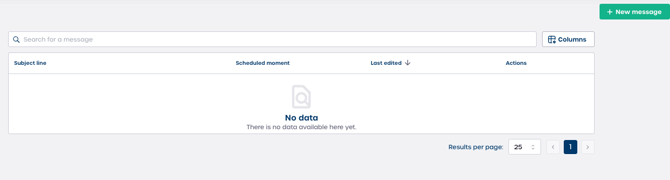
Navigate to "Messages".
-
If this is your first message, you may see "No data".
-
Click "+ New message" to start composing your message.
2. Select recipients and compose your message
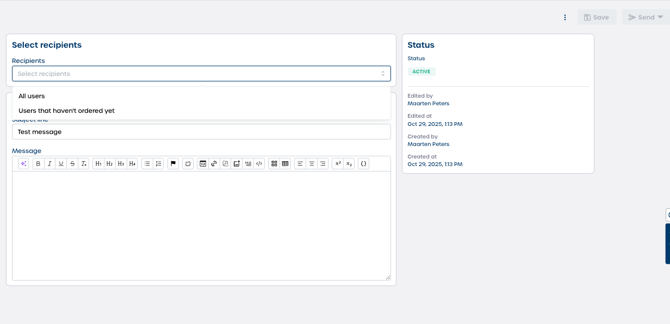
The left panel allows you to define who receives your message and what it contains.
Select recipients
-
Select "Recipients".
-
Use the dropdown to choose your audience. You can select "All users" or choose users who have not ordered at the send time.
Edit message
-
Enter the subject line in "Subject line". This field is mandatory.
-
Enter your message in "Message". Use the rich text editor to format text, add lists, or highlight important parts.
3. Review status and sending options
The right panel shows details about your message.
-
Status shows the current state of your message.
-
Edited by and Created by show who made the latest changes.
4. Send or schedule your message
-
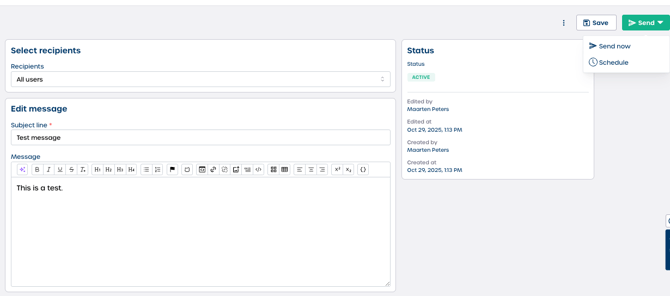
Click "Send" in the top right corner.
-
Select one of the two sending options:
-
Send now
Sends the message immediately to your selected recipients. -
Schedule
Allows you to select a date and time for the message to be sent automatically.
-
Note: Scheduled messages will only be delivered to users who meet the selected recipient criteria at the moment of sending.