
How to navigate and filter connections
-
Use the search bar to find a specific Location by name.
-
Use the filter menus to refine the list:
-
Groups to filter Locations by their assigned Groups
-
Facebook status to filter by connection state such as CONNECTED or CONNECT ACCOUNT
-
Instagram status to filter by connection state such as CONNECTED or CONNECT ACCOUNT
-
-
Look for the blue verification bar at the top. This indicates that the system is verifying social platform connections. The statuses in the table update when this process is complete.
Note: The verification process may take a moment depending on the number of Locations.
How to read the Connections table
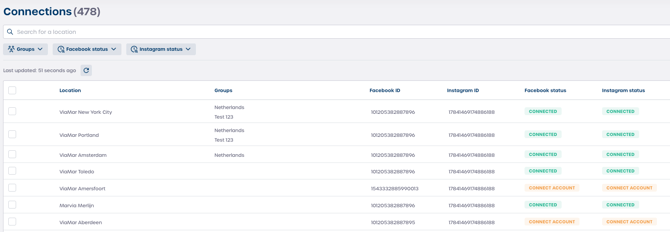
The table lists all Locations and provides important information for troubleshooting.
-
Location
Shows the name of the Location. -
Groups
Shows the Groups the Location belongs to. -
Facebook ID and Instagram ID
Shows the unique platform IDs used to link the Location to its Facebook Page or Instagram Business Account. -
Facebook status and Instagram status
Shows whether the connection is CONNECTED or CONNECT ACCOUNT.
CONNECT ACCOUNT means the Location needs authorization or reauthorization. -
Actions
Contains a menu with connection management options.
How to perform connection actions
Open the actions menu by clicking the three dots on the right side of a row.
-
Update status
Refreshes the connection status for that Location. Use this if the displayed status seems outdated. -
Send email to location
Sends a notification to the Location to request action such as reconnecting their social media account so campaigns can run.
⚠️ Important: Use the actions menu when you notice a Location is not CONNECTED for either Facebook or Instagram. This helps prevent campaign interruptions.