
The Font Library is the central storage area for your brand's fonts used in templates. Keeping all font files in one place ensures your team always uses the correct and most up-to-date versions across all template designs.
Common use cases:
-
Flex Templates: Apply your brand fonts to headers and body text in documents, flyers, and other designs.
-
Video Templates: Use your brand fonts for titles and captions in video projects.
-
Easy updates: Manage all font files in one place so your team always works with the latest versions.
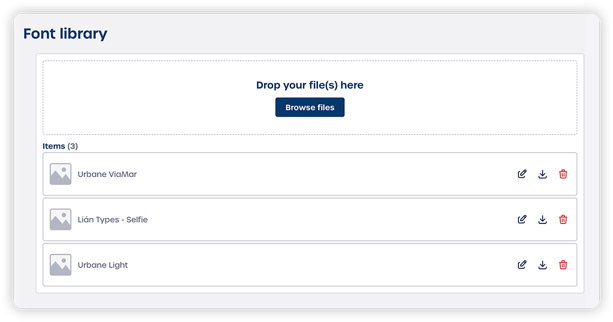
How does the Font Library work?
The Font Library is part of your Brand Kit settings. It acts as the source for all text used in the platform editors. When you add a font to the library, it becomes available for use in your templates.
⚠️ Important: Only .ttf (TrueType Font) files are supported.
Files such as .otf or .woff are not supported. Convert these to .ttf before uploading.
Uploading a font
There are two simple ways to upload fonts:
-
Navigate to Settings > Platform > Font Library in the side navigation
-
Add your
.ttffile using one of the following methods:-
Drag and drop the file into the box labeled "Drop your file(s) here".
-
Click "Browse files" and select the font file from your computer.
-
After uploading, the font will appear in the Items list.
Managing a font
Once uploaded, your fonts appear in the Items list. Use the action icons on the right of each row to manage them:
- Edit (pencil icon): rename the font. Use clear names like "Brand Sans Bold" so your team can easily identify the correct file
- Download (arrow icon): download a copy of the font file to your computer
- Delete (trash icon): remove the font from the library
Note: If you delete a font that is currently used in a template, the template may switch to a default system font. This can affect how your design looks.
Using fonts in templates
The Font Library connects directly to the tools you use to create content.
Video Templates
The system uses the .ttf files from the Font Library to render on-screen text in video projects. The font must be available in the library for text to appear correctly in the final video.
Flex Templates
Uploading a font to the Font Library is not enough to make it available in Flex Templates. You must also select the font in the Brand Kit before users can apply it.
This allows you to upload and manage fonts in advance without immediately making them available in templates.