
The Brand Kit is your central hub for managing your brand's visual identity. It stores your approved colors, text styles, and images, and applies them directly to your Flex Templates so users always work within brand guidelines.
The Brand Kit consists of three sections:
- Colors: define your brand's color palette
- Text styles: create reusable font combinations for consistent typography
- Images: store logos, icons, and other brand graphics
Common use cases:
- Quick access: users can quickly find the exact brand colors and logos they need, without searching elsewhere
- Flex Template styling: colors and text styles defined here automatically appear as options when editing a Flex Template
- Brand consistency: by setting specific palettes and text styles, you ensure everyone stays within brand guidelines across all locations
Managing brand colors
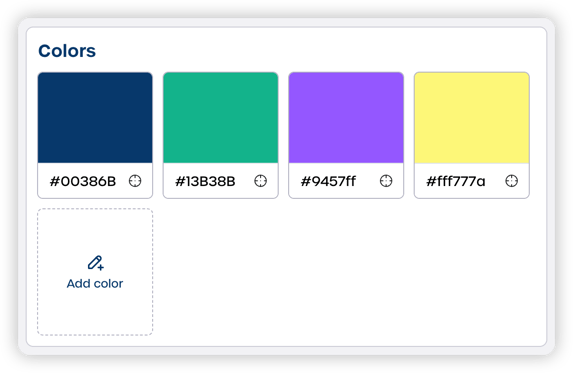
The Colors section allows you to set the specific palette for your brand. These colors are the primary choices available within your templates and are used when creating your Text Styles.
Add or edit a color
-
Navigate to Settings > Platform > Brand Kit in the side navigation and go to the Colors section.
-
Click "Add color" to add a new color to your kit
-
Enter the 6-digit HEX code (e.g.
#00386B) to set the exact shade -
Click "Save" in the top right corner to apply your changes
Your active colors are displayed side-by-side so you can verify they match your brand guidelines.
Creating text styles
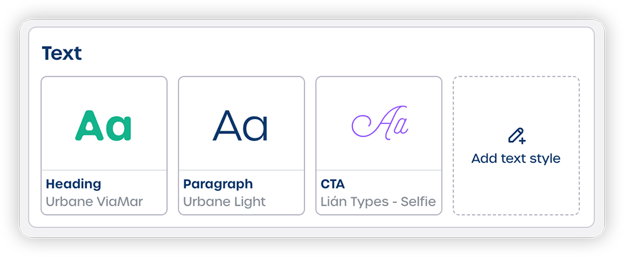
The Text section lets you build reusable text styles by combining fonts, sizes, colors, and formatting.
Setting up a new text style
-
Navigate to Settings > Platform > Brand Kit in the side navigation and go to the Text section.
-
Click "Add text style"
-
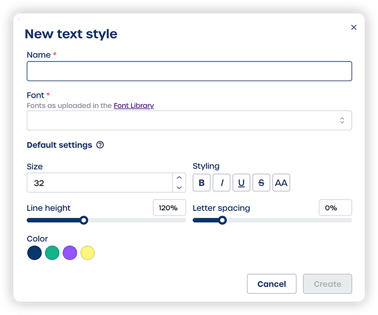
Fill in the style details:
- Name: give it a clear name like "Heading" or "CTA"
- Font: choose from fonts uploaded to your Font Library
- Size and styling: set defaults for bold, italic, underline, or all caps
- Spacing: adjust line height and letter spacing
- Color: select one of your brand colors as the default
-
Click "Save".
Once created, text styles appear as cards in the Brand Kit. Click the "..." on a card to edit or delete a style.
Note: If a font does not appear in the list, first upload it to the Font Library.
Uploading brand images
The Images section stores visual files like logos, icons, and brand graphics.
Add images
- Navigate to Settings > Platform > Brand Kit in the side navigation and go to the Images section.
- Drag and drop files directly into the upload area, or click "Browse files" to select them from your computer
Organize and manage images
- Use the six-dot icon on the left of a row to drag and reorder images, put your most-used images at the top
- Use the icons on the right of each row to download or delete a file
⚠️ Important: Always click "Save" in the top right corner after making changes. If you leave the page without saving, your updates will not be stored.