
What are the main features of Flex Templates?
Flex Templates give you full creative and administrative control.
Key features:
-
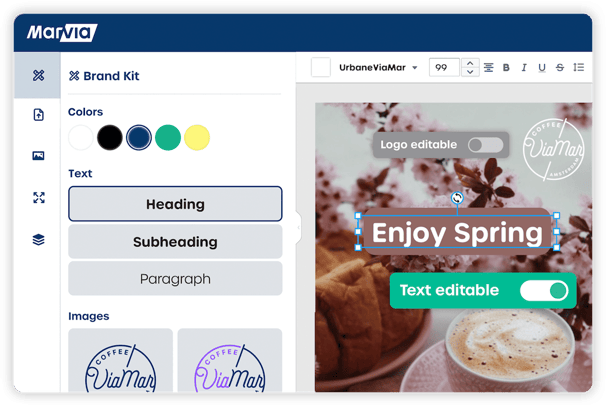
No external software: Build, design, and manage templates entirely within Marvia.
-
Custom modules: Choose which tools, such as the Brand Kit or Stock Photos, are visible to users.
-
Element Permissions: Define exactly what users can move, edit, or replace in each design element.
How do I create and configure a Flex Template?
You create Flex Templates in Template Studio.
Start a new template
-
Navigate to "Template Studio".
-
Select "Flex Templates".
-
Click "New template".
-
Enter a name for your template.
-
Configure the available modules in the Modules section.
-
Click "Save".
Define the user toolbox
In the Modules section, use the checkboxes to control which menus users can access when editing the template.
For example:
-
Enable Brand Kit if users must use approved brand assets.
-
Disable the Upload module if users should not add their own images.
This ensures users only see tools that fit your brand guidelines.
Configure print settings
If your design is intended for print:
-
Enable Crop marks if needed.
-
Set the Bleed area to ensure high quality production.
-
Click "Save".
How do I design and set Permissions?
After creating your template, you can start designing.
-
Click "Edit template".
-
Add pages to your layout.
-
Insert text frames and image elements.
-
Select an element on the canvas to open the Settings panel on the right.
Control user actions with User Settings
When you select an element, you can toggle Permissions on or off to define what users are allowed to do.
Available options:
-
Selectable: Allow users to click the element.
-
Draggable: Allow users to move the element.
-
Content editable: Allow users to edit the text inside a text box.
-
Style editable: Allow users to change font, size, or color.
-
Replaceable: Allow users to replace an image with another image.
By carefully setting these options, you control the balance between flexibility and brand consistency.
What are Admin settings?
At the bottom of the right side panel, you will find Admin settings.
This section acts as a safety lock while you build your template.
Lock elements while designing
You can turn off "Draggable" in Admin settings to temporarily lock an element in place. This prevents you from accidentally moving or changing finished parts of your layout while continuing to design.
This setting helps you work more efficiently and avoid mistakes.