
Navigating and filtering the orders list
The main Orders screen gives you several tools to locate the transactions you need quickly.
-
Navigate to Orders in the left menu.
-
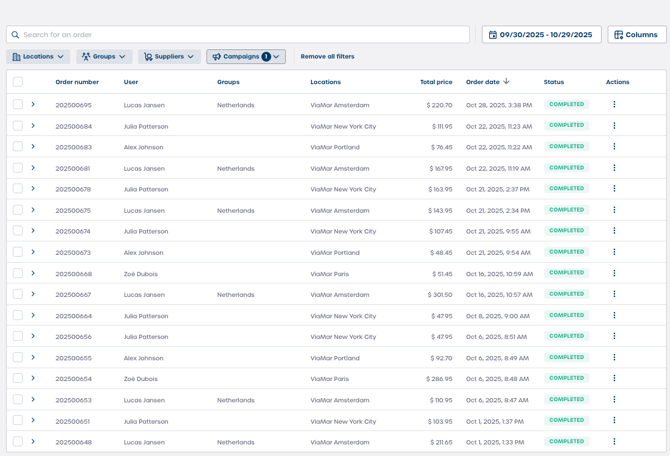
Use the filtering tags above the table to narrow your results. You can filter by:
-
Locations
-
Groups
-
Suppliers
-
Campaigns
-
-
Select the date picker in the top right to limit orders to a specific time period.
-
Enter a term in the search bar to find a matching order.
-
Select Columns to customize which data appears in the table.
Note: Filters combine with each other, so you can apply multiple filters at once.
Interpreting the orders table
The Orders table summarizes key information for every order.
| Column | Description |
|---|---|
| Order number | The unique identifier for the order, for example 202500695. |
| User | The user who placed the order, for example Lucas Jansen. |
| Groups | The user group the purchaser belongs to. |
| Locations | The location the order is associated with. |
| Total price | The overall cost of the order. |
| Order date | The date the order was completed. |
| Status | The current fulfillment state, for example COMPLETED. |
| Actions | A menu for administrative tasks related to the order. |
Reviewing the contents of a specific order
You can expand any individual order to see a full breakdown of the products and recipients.
-
Select the arrow next to the Order number.
-
Review the order header fields:
-
Order number
-
User
-
Groups
-
Locations
-
Total price
-
Order date
-
Status
-
-
Review the product details, which show:
-
Product name
-
Supplier
-
Total quantity
-
Total price
-
-
Review the Recipient, Quantity, Price table to understand how the order was distributed among locations.
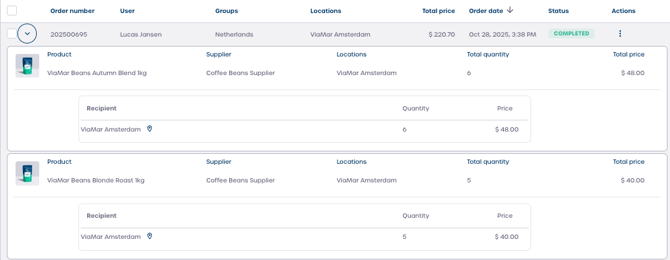
⚠️ Important: Expanded product details help you confirm exact quantities and pricing before taking action on an order.