
How to add products or packages to your Campaign
1. Open the Add products modal
-
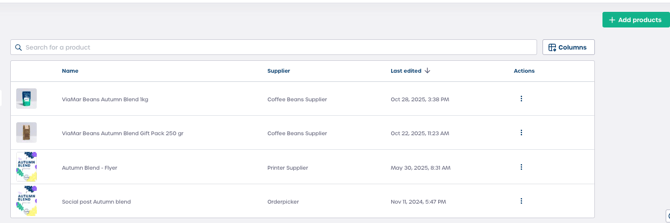
Navigate to your Campaign configuration screen.
-
Select the option to add products. This opens the Add products modal.
Note: You can also use this modal when adding products to posts or content elements.
2. Search for products
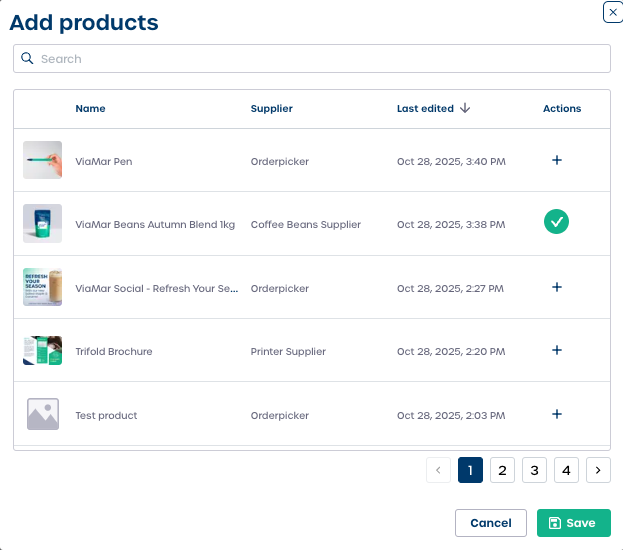
The modal shows the product catalog, including name, supplier, and last edited dates.
-
Enter a product Name or keyword in the "Search" bar to filter the list.
-
Review the results in the product list. Each product shows:
-
Name
-
Supplier
-
Last edited date
-
3. Select products
-
Click the plus icon in the "Actions" column to add a product to your selection.
-
A green checkmark appears to confirm the product is selected.
Caution: You can select multiple products but make sure each selected item is relevant to your Campaign.
4. Save your selection
-
Click "Save" to link the selected products to your Campaign.
-
Click "Cancel" if you want to close the modal without saving.
⚠️ Important: Products are only associated with the Campaign after you click "Save".