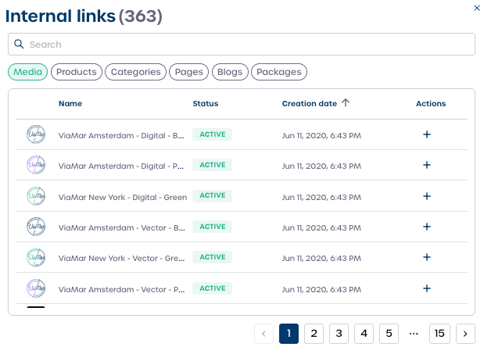
You can enrich your Marketing Calendar events by adding files or linking to items such as assets, products, pages, or categories
-
Navigate to "Communication" and then "Marketing Calendar" in the side navigation panel.
- Select the calendar you want to make changes to
- For Timeline: select an existing event to edit
- For Monthly: open an existing event by selecting the open icon in the top-right corner of the event detail
-
Scroll down to the Internal links section.
-
Select "Add link".
-
In the pop-up, select the plus icon in the Actions column to choose one or multiple items.
- You can link to: assets, products, categories, pages, blogs, and packages.
- Use the search bar to quickly find the desired item.
-
Select "Save" to close the pop-up.
-
Select "Save" again to apply all changes to the event.